How to Use WhatsMyName App on Your Phone. Android and iOS Guide
WhatsMyName App works on any phone browser. No app download needed. Here is how to run a username search on Android or iPhone in under 2 minutes.
By Ayan Malik · Builder and writer, WhatsMyName App
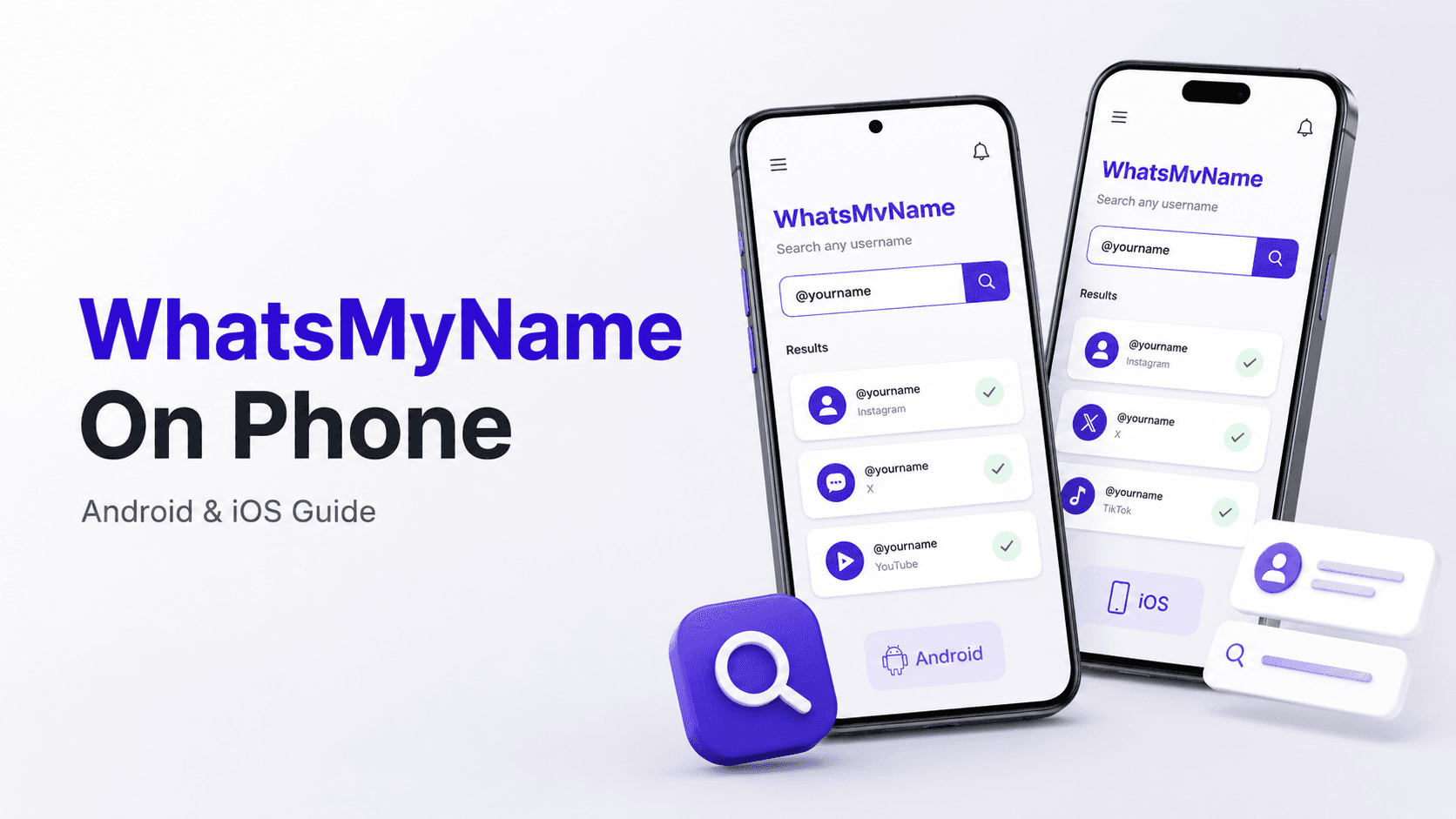
WhatsMyName App works on any smartphone browser, Android or iPhone, with no app download required. Open your mobile browser, go to WhatsMyName App, type a username, and results appear in under 90 seconds. The full tool is available on mobile with no features removed.
This guide walks through the exact steps for both Android and iPhone, covers common mobile issues and how to fix them, and explains how to export and save your results on a phone.
Does WhatsMyName App have a mobile app
No. WhatsMyName App does not have a dedicated app on the Google Play Store or the Apple App Store. The tool runs as a web application that works in any modern mobile browser.
This is intentional. A browser-based tool means no installation, no app permissions, no updates to manage, and no storage used on your device. Everything runs in your browser session and disappears when you close the tab, which is also why nothing you search is ever stored or logged.
If you find an app on the Play Store or App Store claiming to be WhatsMyName App, it is not the official tool. Use the browser version at whatsmynameapp.us/tools/whatsmyname-app directly.
How to use WhatsMyName App on Android
These steps work on any Android device, Samsung, Google Pixel, OnePlus, Xiaomi, or any other brand, using Chrome, Firefox, or any other Android browser.
Step 1, Open your browser Open Chrome, Firefox, or any browser on your Android device. Chrome is installed by default on most Android phones and works perfectly with the tool.
Step 2, Navigate to WhatsMyName App
In the address bar, type whatsmynameapp.us/tools/whatsmyname-app and tap Go, or tap the link directly if you are reading this on your phone: WhatsMyName App.
The page loads immediately with no splash screen or login prompt.
Step 3, Tap the search field and enter a username Tap the input field to bring up your keyboard. Type the username you want to search. Use the exact spelling and capitalisation as it appears on the platform where you already know the account exists.
Step 4, Tap Search Tap the Search button. The tool starts checking all 732 platforms in parallel. Results begin appearing on screen within a few seconds.
Step 5, Scroll through results as they stream in Results appear one by one as each platform responds. Scroll down to see more results as they load. Each confirmed result shows the platform name and a tappable link that opens the live profile in a new tab.
Step 6, Export results on Android When the scan completes, tap the export button to download a CSV file of all confirmed results. On Android, the file saves to your Downloads folder and can be opened with Google Sheets or any spreadsheet app.
How to use WhatsMyName App on iPhone
These steps work on any iPhone using Safari, Chrome, or Firefox for iOS.
Step 1. Open Safari or another browser Safari is the default browser on iPhone and works well with the tool. Chrome and Firefox for iOS also work. Open whichever browser you use regularly.
Step 2, Navigate to WhatsMyName App
Tap the address bar, type whatsmynameapp.us/tools/whatsmyname-app and tap Go, or tap this link if you are on your phone: WhatsMyName App.
Step 3, Tap the search field and enter a username Tap the input field. Your iPhone keyboard appears. Type the username you want to search. WhatsMyName App is case-aware on some platforms so enter the username exactly as it appears on the platform where you know it exists.
Step 4, Tap Search Tap the Search button. The tool immediately starts checking all 732 platforms. Results begin streaming in within seconds.
Step 5. Read results as they appear Scroll through results as they load. Tap any confirmed result to open that profile in a new Safari tab. You can switch between tabs to review each profile.
Step 6, Export results on iPhone When the scan finishes, tap the export button. On iPhone the CSV file downloads and can be opened in Numbers, Google Sheets, or another spreadsheet app. If the download does not start automatically, check your Safari download settings, go to Settings, then Safari, then Downloads, and make sure a download location is set.
Add WhatsMyName App to your home screen
If you use WhatsMyName App regularly, you can add it to your home screen so it opens like an app without typing the URL each time.
On Android (Chrome):
- Open WhatsMyName App in Chrome
- Tap the three-dot menu in the top right
- Tap "Add to Home screen"
- Confirm the name and tap Add
- The icon appears on your home screen and opens the tool directly when tapped
On iPhone (Safari):
- Open WhatsMyName App in Safari
- Tap the Share button at the bottom of the screen (the box with an arrow pointing up)
- Scroll down and tap "Add to Home Screen"
- Confirm the name and tap Add
- The icon appears on your home screen
This creates a shortcut to the web version, it is not an app install and uses no additional storage beyond the browser cache.
Mobile tips, how to get the best results on a phone
Use a strong wifi connection. WhatsMyName App runs 20 parallel checks at a time across 732 platforms. A slow mobile data connection can increase the number of error results and slow down the overall scan. Wifi generally gives faster and more reliable results.
Keep the browser tab open during the scan. On some phones, switching away from the browser tab while a scan is running may pause JavaScript execution. Keep the browser in the foreground until the scan completes.
Use landscape mode for easier reading. Rotating your phone to landscape gives you more horizontal space to see platform names and results without scrolling sideways.
Tap and hold links to preview before opening. Rather than tapping a result directly and navigating away from the results page, tap and hold on Android or long-press on iPhone to open the profile link in a new tab. This keeps your results page intact while you review profiles.
Save the CSV before closing. The CSV export is only available once the scan has fully completed. If you close the tab before exporting, the results are gone permanently because nothing is stored server-side.
Common mobile issues and fixes
Issue: Page loads slowly or partially This usually means a slow internet connection. Switch from mobile data to wifi if possible and refresh the page. If the problem persists, close other open tabs to free up browser memory.
Issue: Results stop appearing mid-scan This can happen if the browser tab is backgrounded on certain Android phones with aggressive battery management. Keep the screen on and the browser tab in the foreground throughout the scan.
Issue: The export button does not trigger a download on iPhone Check that Safari is allowed to download files. Go to Settings, then Safari, then Downloads, and make sure iCloud Drive or On My iPhone is selected as the download location. Alternatively, try the export in Chrome for iOS which handles downloads differently.
Issue: Too many error results Error results are more common on slower connections and can also occur when a platform temporarily rate-limits requests from mobile IP addresses. Try the search again on a wifi connection. If specific platforms consistently return errors, check those platforms manually by visiting them directly in your browser.
Issue: Tapping links opens them in the same tab In Safari, tap and hold the link and select "Open in New Tab" to keep your results page open. In Chrome, tap and hold and select "Open in New Tab" as well.
Frequently asked questions
Is WhatsMyName App free on mobile? Yes, completely free. There is no mobile subscription, no premium mobile version, and no difference in features between the mobile and desktop experience. Everything available on desktop is available on mobile.
Does the mobile version search all 732 platforms? Yes. The mobile browser version runs the same search as the desktop version, all 732 platforms are checked in parallel. No platforms are excluded on mobile.
Can I use WhatsMyName App without wifi on a phone? Yes, mobile data works. However, wifi generally gives faster results and fewer error responses because the connection is more stable. For best results, use wifi when available.
Will using WhatsMyName App drain my battery? A search involves your browser making 732 network requests in parallel. This is more intensive than casual browsing but comparable to streaming video for a minute or two. Battery impact for a single search is minimal.
Does WhatsMyName App work on older phones? The tool works in any browser that supports modern JavaScript. Most phones running Android 8 or later and iPhones running iOS 13 or later will handle the tool without issues. Very old devices with outdated browsers may experience slower performance or display issues.
Is there a WhatsMyName App for tablets? The web version works on any tablet, iPad, Android tablet, or any other device with a modern browser. The experience is the same as desktop because the tool is browser-based.
Related guides
Written by
Ayan MalikBuilder and writer, WhatsMyName App
Ayan Malik builds and maintains the username search interface on this site, and writes the guides published here on OSINT, username research and digital privacy.
More from Ayan MalikTry the username lookup tool
Search 732+ platforms in seconds, free, no sign-up required.
WhatsMyName AppRelated Posts
 OSINT
OSINTWhatsMyName App Web Version. Use It Free in Your Browser
Use WhatsMyName App directly in your browser with no install and no signup. The web version checks 732 platforms instantly. Here is how it works.
 OSINT
OSINTHow to Use WhatsMyName App: Complete Step-by-Step Guide
WhatsMyName App searches 732 platforms simultaneously and returns real-time results with direct links to every found profile. The basic search…