How to Use WhatsMyName App: Complete Step-by-Step Guide
WhatsMyName App searches 732 platforms simultaneously and returns real-time results with direct links to every found profile. The basic search…
By Ayan Malik · Builder and writer, WhatsMyName App
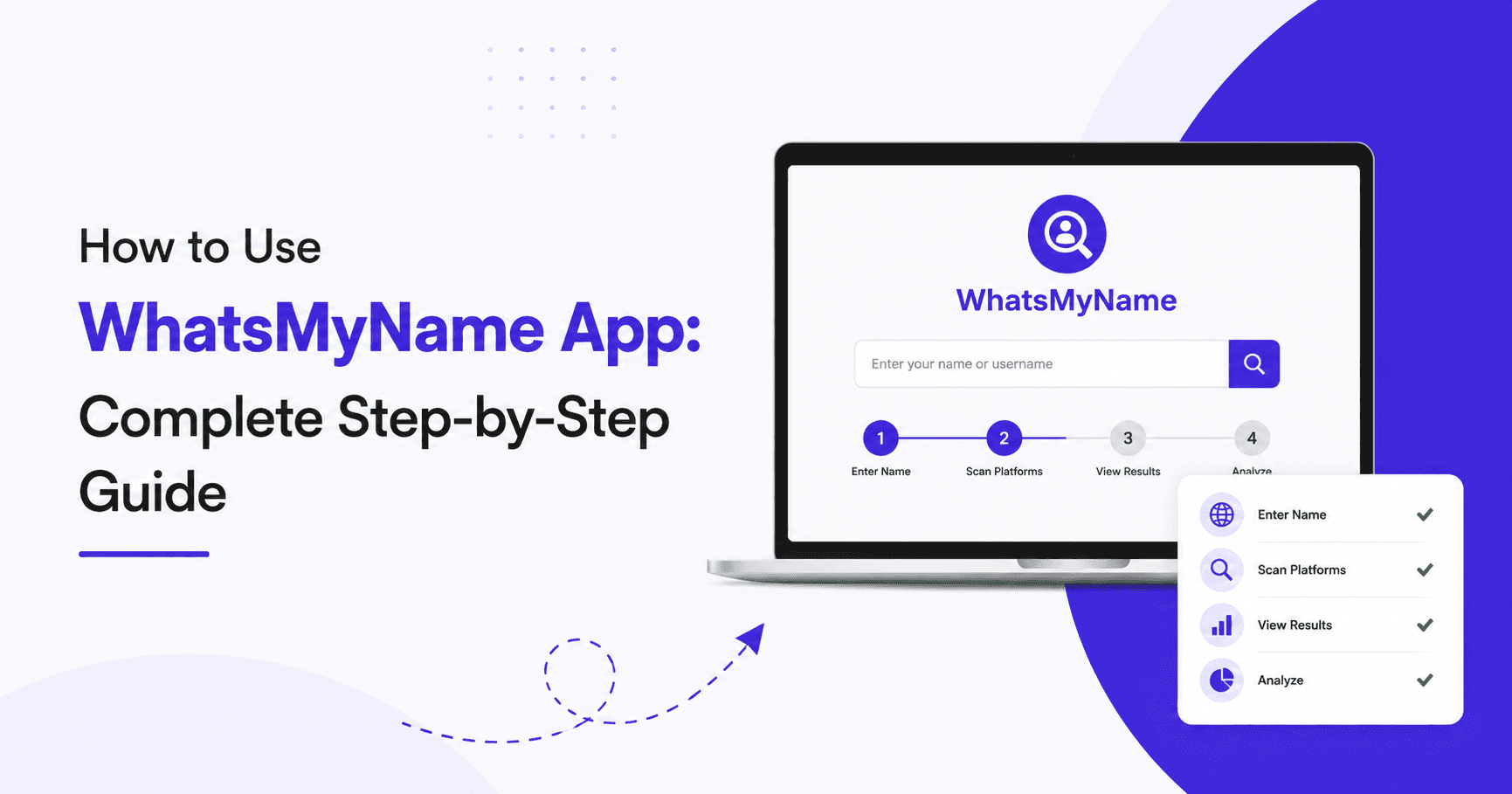
WhatsMyName App searches 732 platforms simultaneously and returns real-time results with direct links to every found profile. The basic search takes about 30 seconds to learn. This guide covers everything from the first search to advanced techniques that most users never discover.
What You Can Do with WhatsMyName App
Before getting into the steps, it helps to know what the tool actually does so you can use it purposefully.
WhatsMyName App checks whether a username exists on each platform in its database by sending a read-only request to a known profile URL pattern. It does not log into anything. It does not access private data. It reads publicly accessible URLs the same way your browser does when you type an address and press Enter.
You can use it to:
- Find all platforms where a specific username is registered
- Audit your own digital footprint and find forgotten accounts
- Verify whether someone's claimed online identity is consistent across platforms
- Investigate potential impersonation of your own name or brand
- Perform initial OSINT reconnaissance on a username as part of a legitimate investigation
- Check username availability across 732 platforms before registering a new handle
The tool covers social media, gaming, coding communities, forums, dating sites, finance platforms, music and video services, tech communities, shopping, image hosting, news sites, and business networks.
Before You Start
A few things to know before your first search:
You do not need an account. WhatsMyName App requires no registration, no email, and no login. Open the page and start searching.
Usernames are case-insensitive on most platforms, but not all. The tool checks the exact username you enter. If a platform is case-sensitive and you enter the wrong case, you may get a false not-found result. When in doubt, try both variations.
The tool searches usernames, not real names. Enter the handle someone uses on social platforms, not their full name. If you only know someone's real name and need to find their username, start with an educated guess based on common patterns like firstnamelastname, firstname underscore lastname, or firstnameinitial lastname.
Results are real-time, not cached. Every search runs fresh checks against live platforms. Results reflect the current state of each platform at the moment of your search.
Step-by-Step: How to Run Your First Search
Step 1: Open WhatsMyName App
Go to whatsmynameapp.us in any browser. The tool works on desktop and mobile. No extensions, no downloads, no setup. The search bar is at the top of the page as soon as it loads.
Step 2: Enter the Username
Type the username you want to search into the input field. Enter just the username itself without any prefix. Do not include the @ symbol, the full profile URL, or the platform name. Just the raw handle.
For example, if the Instagram profile URL is instagram.com/johnsmith, enter johnsmith.
If you want to search multiple username variations, note that the tool searches one username at a time through the web interface. If you need batch processing across multiple usernames, that requires a command-line tool like Sherlock or Maigret. The web interface is optimized for single-username searches.
Step 3: Apply Category Filters (Optional)
Before clicking Search, you can filter results by platform category. Click the category dropdown to see the available options. Categories include Social, Gaming, Coding, Forums, Dating, Finance, Music, Video, Tech, Shopping, Images, Blog, News, and Business.
If you are only interested in social media results, select Social before running the search. This reduces the number of platforms checked and makes the results easier to scan. If you want complete coverage, leave the filter set to All.
Step 4: Click Search or Press Ctrl + Enter
Hit the Search button or press Ctrl + Enter on Windows or Cmd + Enter on Mac. The tool begins checking all 732 platforms in parallel, running 20 simultaneous checks at a time.
Step 5: Read the Results as They Stream
Results appear in real time as each check completes. You do not need to wait for the full scan to finish. Results appear in two places:
- On the left panel as icons, green or highlighted icons indicate found accounts
- On the right panel as a searchable table, shows platform name, URL, and status
There are three result states:
Found: The platform confirmed an account exists at that username. The result is a clickable link that opens the live profile directly.
Not found: The platform responded and confirmed no account exists under that username there. This is expected and means the tool is working correctly.
Error: The platform returned an unexpected response. This does not confirm or deny whether an account exists. The check was inconclusive for that platform. Errors are normal on some platforms, especially those that rate-limit automated requests.
Step 6: Search Within Results
Once results start appearing, you can use the search bar within the results table to filter by platform name. If you are looking for a specific platform, type its name into the results filter and it will appear immediately if it is in the database.
Step 7: Click Through to Verify Found Accounts
Every found result is a clickable link. Click it to open the live profile on that platform in a new tab. Verify the account manually before drawing any conclusions. The same username can be used by different people on different platforms. A found result confirms the username exists, not that it belongs to the specific person you are investigating.
Step 8: Export Your Results
Once the scan completes, click the Export button to download all found accounts as a CSV file. The export includes the platform name, the direct profile URL, and the platform category. This is useful for reporting, documentation, or continuing an investigation in a spreadsheet.
The full scan of 732 platforms typically completes in 30 to 90 seconds depending on your connection speed.
How to Use the Category Filter Effectively
The category filter is one of the most useful features in WhatsMyName App and most users ignore it completely.
If you are investigating a gamer, filter by Gaming first. This narrows results to Steam, Twitch, Xbox, PlayStation Network, Roblox, NameMC, and similar platforms where gaming handles are registered. You get focused results faster without scrolling through hundreds of social media entries.
If you are doing professional identity verification, filter by Business and Coding. This surfaces LinkedIn, GitHub, GitLab, Stack Overflow, and professional network profiles quickly.
If you are investigating online dating activity, filter by Dating to check platforms like Tinder, Bumble, OKCupid, and similar sites specifically.
Use All Categories when you want a complete picture and are willing to spend time going through the full result set.
Important Notes on Interpreting Results
A found result is a lead, not a conclusion. Clicking through and seeing the live profile is step two. The same username can belong to different people. Before acting on any result that matters, legally, professionally, or personally, verify it manually.
Error results are not failures. Some platforms consistently return errors because they rate-limit automated requests, have changed their URL structure recently, or are temporarily unavailable. Instagram, TikTok, and some large social networks return errors more often than smaller platforms. If a specific platform consistently shows errors, visit it manually.
Not found does not mean the account never existed. Deleted accounts, changed usernames, and deactivated accounts all return not found. The result reflects the current state at the time of the search, not historical account activity.
Username consistency across platforms is meaningful. Finding the same username on 15 different platforms is a strong signal that the accounts belong to the same person, especially if the platforms are in different categories (social, gaming, professional) and the profile details are consistent. Inconsistency across profiles may indicate multiple people with the same username or that the person uses different handles on different platforms.
Advanced Tips
Search username variations. People often use slight variations of the same handle across platforms. If johnsmith returns limited results, try john_smith, john.smith, johnsmith99, and johnsmith1984. Each variation may surface different accounts.
Use the URL shortcut. You can submit a username directly in the URL by going to whatsmynameapp.us/?q=username. Replace "username" with the handle you want to search. This is useful for quickly running repeat searches or sharing a pre-filled search link.
Combine with Google. After running a WhatsMyName App search, take usernames that appear on multiple platforms and run a Google search for the exact username in quotes. Google often surfaces forum posts, news mentions, and other pages that are not in the WhatsMyName database.
Check multiple username formats. If you are auditing your own footprint, run searches for every variation of your username you have ever used. Old accounts from 10 years ago may still exist under a handle you stopped using.
Use a privacy-focused browser for sensitive research. If you are investigating a sensitive matter and want to minimize tracking, run the search in Firefox with Enhanced Tracking Protection set to Strict, or use a VPN to reduce the ability of any analytics cookies to associate your IP with your searches. For details on the tool's privacy setup, read is WhatsMyName App safe to use.
Common Mistakes to Avoid
Including the @ symbol. Enter johnsmith not @johnsmith. The tool searches the raw username.
Using a full profile URL. Enter johnsmith not instagram.com/johnsmith. The tool constructs the URL internally for each platform.
Treating every error as a problem. Errors are expected on some platforms. If you are seeing errors across all platforms simultaneously, check your internet connection. If errors appear on one specific platform consistently, it is likely a detection issue, not a connection issue. Read the troubleshooting guide for a full breakdown.
Skipping manual verification. A found result is the starting point. Always click through to the live profile before drawing conclusions.
Forgetting to export. If you are doing any kind of research or investigation, export results before closing the tab. Results are not saved between sessions.
What to Do After You Find Results
Once you have a list of found accounts, here is how to proceed depending on your situation:
If you are auditing your own digital footprint: Review each found account. Check whether the bio, profile photo, and linked information are current and accurate. Decide whether to update, deactivate, or delete old accounts you no longer use. Accounts you have forgotten about are still publicly visible and may contain outdated information.
If you found accounts you did not create: Someone may be using your username on platforms where you are not present. This is common and is not always malicious. Check whether the profile content, bio, and photos belong to you or to someone else. If the account is impersonating you, document it with screenshots and report it through each platform's official impersonation reporting process.
If you are verifying someone's identity: Cross-reference the found accounts. Check whether the display name, bio, profile photo, and posting history are consistent across platforms. Inconsistencies may indicate different people with the same username, or a person using different personas on different platforms.
If you are doing OSINT research: Use the found accounts as pivot points. Each profile may contain additional information like linked accounts, email addresses, real names, locations, and biographical details that can be used to expand the investigation. For more advanced OSINT techniques, visit the OSINT tools directory.
Frequently Asked Questions
Do I need an account to use WhatsMyName App?
No. There is no registration, no login, and no email required. Open the page, enter a username, and search.
How long does a search take?
A full scan of 732 platforms typically completes in 30 to 90 seconds. Results stream in real time so you can start reading while the scan is still running.
Can I search multiple usernames at once?
Not through the web interface. The web tool searches one username at a time. For batch searching across multiple usernames, use command-line tools like Sherlock or Maigret. Read how WhatsMyName compares to other tools for a full breakdown.
Why are some results showing as errors?
Errors mean the platform returned an unexpected response during the check. This is normal for some platforms. It does not mean the tool is broken. Read the full troubleshooting guide for specific causes and fixes.
Can I search on mobile?
Yes. The tool works in any mobile browser. No app download required. Open whatsmynameapp.us on your phone and run the search exactly as you would on desktop.
Is the tool free?
Yes, completely free. No paid tier, no usage limits, no account required.
Can I export results?
Yes. Click the Export button after the scan completes to download all found accounts as a CSV file.
Does the tool log what I search?
No. Searches run entirely within your browser session and are discarded when you close the tab. No usernames are stored on any server.
What if a platform I want to check is not in the results?
It may not be in the WhatsMyName dataset yet. You can request additions at the WhatsMyName GitHub repository at github.com/WebBreacher/WhatsMyName.
Ready to run your first search? Try WhatsMyName App free →
For a full breakdown of what the tool can and cannot do, and whether it is right for your situation, read the WhatsMyName App overview.
Written by
Ayan MalikBuilder and writer, WhatsMyName App
Ayan Malik builds and maintains the username search interface on this site, and writes the guides published here on OSINT, username research and digital privacy.
More from Ayan MalikTry the username lookup tool
Search 732+ platforms in seconds, free, no sign-up required.
WhatsMyName AppRelated Posts
 OSINT
OSINTHow to Search a WhatsApp Username (And What Actually Works)
WhatsApp launched usernames in 2026 with no public directory and no search, on purpose. Here is what a WhatsApp handle really tells you, and what works instead.
 OSINT
OSINTFree Digital Footprint Checker: Search 732 Platforms by Username
Check your digital footprint free by username. WhatsMyName App scans 732 platforms and shows every account registered under your handle in under 90 seconds.